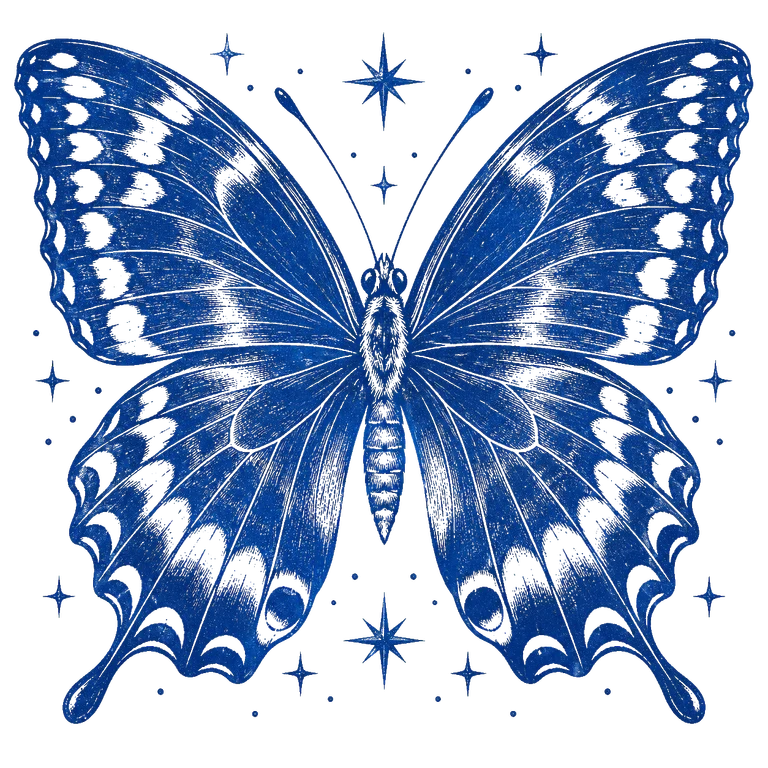
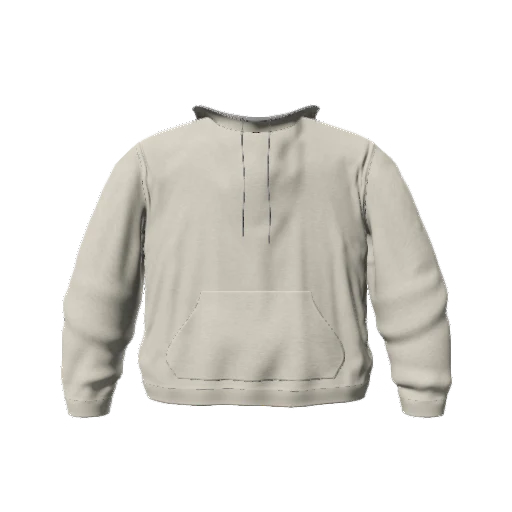
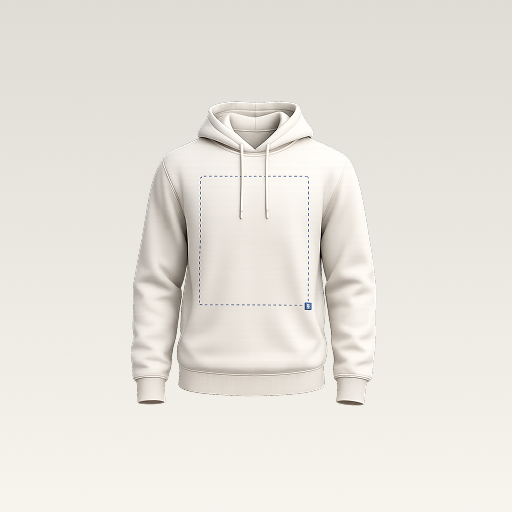
 mockup
To make a T-shirt mockup on your phone, choose a garment, import your artwork, adjust its placement, and export an image of the finished design. A 3D preview lets you check the design from more than one angle before sharing it. Here is a practical first-project workflow for 3D Mockup on iPhone and Android.
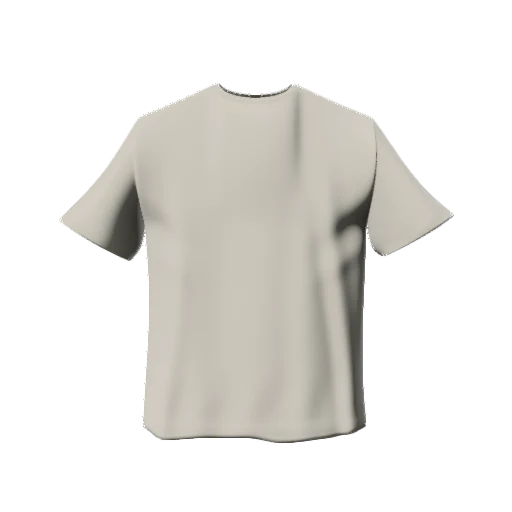

Start with one garment, one graphic, and one good export. Keep your original artwork separate from the mockup image.
1. Start with a clean artwork file
Use your original logo or illustration rather than a screenshot of it. Screenshots can include interface elements, extra margins, and a background you did not intend to print. For a standalone graphic, a PNG with a genuinely transparent background is a useful starting point.
Check the graphic on both a light and a dark background. A white logo can disappear on a white shirt, while a dark outline may get lost on black. Also inspect the edges: a faint white fringe becomes much easier to see once the garment color changes.
Fix white boxes and rough edges in your PNG2. Choose the garment before placing the design
Open a T-shirt in 3D Mockup and choose a garment color that helps you judge the artwork. Start with a neutral color if you are still exploring the design. The garment silhouette is part of the composition, so do not judge the graphic in isolation.
A mockup is a visual concept, not a sizing or fit simulation for a particular supplier's blank. If you plan to manufacture the design, compare it against your actual garment and the printer's template later.
3. Import, position, and scale your artwork
Add an image layer in the editor. Move, resize, and rotate the graphic until the balance feels right. Start with a centered front design; once that reads well, explore a smaller chest placement or a second text layer.
Look at the visible artwork rather than just its selection bounds. A file with large transparent margins can appear centered even when the actual logo is off to one side. Trim unnecessary empty space in your artwork tool if placement feels confusing.
- Leave breathing room between the graphic and the neckline.
- Keep small text large enough to read in the exported image.
- Check the front and back separately if your design uses both.
4. Check the design in 3D
Rotate the garment and inspect the composition from the front and an angled view. Check whether folds or the side of the garment hide an important letter or part of your logo. Then adjust the fabric appearance, lighting, and background without changing everything at once.
Use consistent lighting while comparing versions. A change in light can make the same artwork feel stronger or weaker, even when the placement has not changed. For your first image, a simple background usually makes the design easier to evaluate.
Making a black T-shirt mockup? Check the outline
A dark garment can make a colorful illustration feel stronger, but it can also hide the dark outline that gives the artwork its shape. Inspect the graphic at normal viewing size, not just while zoomed in. If necessary, prepare a version with a lighter outline or simpler detail in your artwork editor.
Keep the lighting and background the same when comparing black and white T-shirt mockups. This makes it easier to see whether the artwork itself works on both colors. Do not use a brighter light to disguise a contrast problem you would still need to resolve in the original design.
5. Save the project and export a PNG
Save the project if you want to revisit the design. Export a PNG, then use the device's share options to put the completed file somewhere you can find it again. Open that file outside the editor and check its framing and readability at the size you intend to share.
The exported mockup shows the garment and your design together. It is not the original artwork file, a sewing pattern, or a production-ready print template. Send your printer the original graphic and its requested specifications, not just the presentation image.
Next: compare the same design across colorwaysQuick answers
Can I make a T-shirt mockup without Photoshop?
Yes. You can place your artwork on a garment and export a preview in 3D Mockup on your phone. You may still want an artwork editor to prepare the original logo or remove its background.
Is 3D Mockup free?
The app is free to download. Studio access requires a subscription, and AI artwork generation uses credits. Check the app for current regional pricing and trial availability.
Can I use the mockup as a print file?
Use it to explain the intended look and placement. Prepare production artwork separately using your printer's product-specific requirements.
Published by 3D Mockup. These guides explain a mockup workflow, not manufacturing specifications. Studio access requires a subscription; AI artwork generation uses credits.